

At its most basic, a network speed test is a tool used to see how fast your internet connection speed is.
Many times these services are used to determine what is making one’s internet problematic, or out of the norm, when the user is experiencing internet connection difficulties.
The user would then run a connection speed test to obtain data about their internet connection.
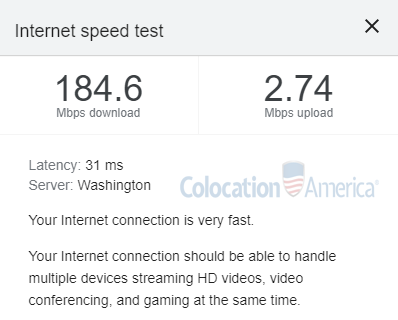
But how can a network speed test help one choose a data center provider?
How Speed Tests Can Help You Choose a Data Center Provider
Hosting with Colocation America lets you take full advantage of our vast Internet Service Provider (ISP) networks, peering contracts with other ISPs, and our Meet Me Room (MMR) which connects our data center clients with each other.
We provide a way for your server to get a better connection by limiting the “hops” it takes to connect to another network.
With such network redundancies, we offer superior connectivity with direct connections to top networks that can limit the latency and potential connection problems.

And here’s how:
You’re located in Buffalo, NY and you call Colocation America and inquire about data center services in Los Angeles, CA.
Logic would dictate that a data center in Los Angeles, CA would have slower transfer speeds for a client in Buffalo, NY than a data center in New York City, NY due to geography alone—and that would be correct.
The internet works in much the same way as a highway system. The longer the road, the longer it will take to get to your destination. But you also have to account for traffic along those roads. These are just some of the factors that determine your internet speed.
However, much like highways, there’s rarely one straight from your starting point to your destination. You have to go through multiple turns, on and exit ramps, etc, and so does the information you’re requesting through the internet.
Each turn, ramp, etc. your packet of information passes through is known as a “hop.”
The more hops your information goes through, the slower your request will come back to you.
We can show this through a speed testing tool known as traceroute.
What is Traceroute?
As touched upon above, a traceroute is simply a utility that takes note of the route (or router-to-router-to-router highway transportation, following our analogy) between your computer and the destination on the Internet you’re trying to reach.
For example, let’s run a traceroute to google.com (you can try this yourself through your computer’s command prompt):
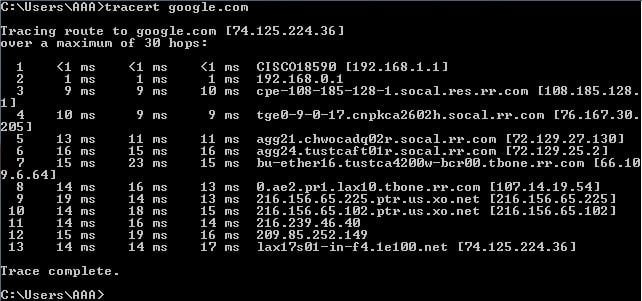
Notice that my request went through 13 separate hops to reach its destination. Notice also that each router sent back its IP address so we have a better understanding of where our data went.
Thus, performing a traceroute will give you a detailed look of the route a packet will take as it travels from one network system to another.
One could reasonably gather, then, that trying to connect to a United States bound IP (like the Google example above) would take much longer than trying to connect to an IP abroad, like bbc.com:
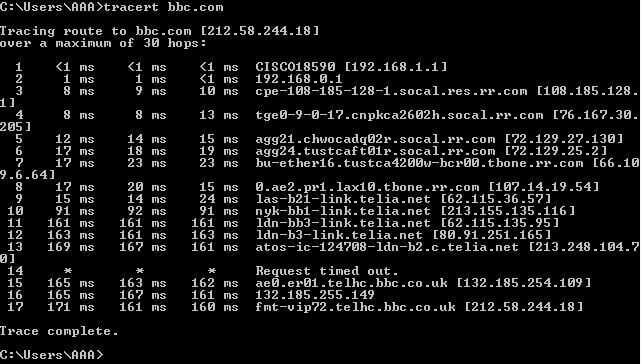
Notice that while to connect to Google it took 13 hops with no longer than 23ms of latency. Connecting overseas, however, took 17 hops and upwards of 150ms of latency.
Tracerouting is a great way to determine the strength and speed of, say, a colocation or dedicated server provider like us.
Contact our sales team and we’ll be able to provide you with an IP address to test how many hops it would take to connect to any one of our 22+ data center locations.
What’s the Difference Between Tracerouting and a Traditional Speed Test?
A traditional speed test, like speedtest.net, is useful for determining the Internet speed your ISP provides to you and is rarely, if ever, used to determine the latency of your data center provider.
If you’re having trouble with connecting to a website, running a ping test can let you know quickly if the host is online or not. So, if you can’t connect to your hosted server, you can type in the IP address.
To run a ping test, we’ll open the same command line and type ping (host) with (host) being the website you’re trying to connect to.
You’ll get something like this (we’ll use Google again as an example):
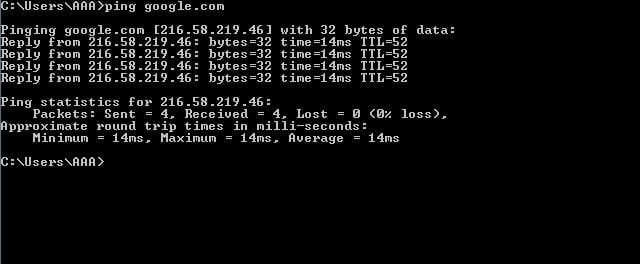
As expected, Google is online and running. If you’re having problems it could be on a hop, which is when you’d use the traceroute utility.